

Home Office Lighting: Beat Screen Glare, Choose a Task Light and Plan the Layout

What you need before you start
Good home office lighting does two jobs: it lets you see the work, and it keeps bright spots and reflections off the screen. This guide shows how to place the desk, tame the window, set the ceiling light, add a task lamp and choose bulbs, step by step.
You need a tape measure, a phone torch or small mirror, a notepad and about an hour. You do not need to buy anything until you have worked out what is wrong. Most glare problems are fixed by moving the desk or closing a blind, which costs nothing.
A note on authority. The legal duties in this area fall on employers, and the sources we cite are workplace guidance. Using them at home is sensible but it is not a legal test of your room.[1] Where we give a number of our own, we label it “our rule of thumb” and do not cite it.
If your room is also a living space, our guide to layering lighting in a living room covers the general idea, and how many lumens and what colour temperature for each room explains the numbers.
What the rules say about screens and light
The Health and Safety (Display Screen Equipment) Regulations 1992 are short on lighting but clear on principles. Their Schedule says room lighting or task lighting must give satisfactory conditions and an appropriate contrast between the screen and its background, and that disturbing glare and reflections on the screen must be prevented by coordinating the layout of the workplace and workstation.[2] It also says workstations must be designed so that sources of light such as windows cause no direct glare and no distracting reflections, and that windows need a suitable adjustable covering to attenuate daylight.[2]
HSE’s leaflet turns this into plain advice: arrange the desk and screen to avoid glare, which is often easiest if the screen does not face windows or bright lights directly; adjust screen brightness and contrast to suit the room; and use curtains or blinds to block intrusive light.[3]
Does this apply to you at home? HSE says the law covers employees who use display screen equipment daily for continuous periods of an hour or more, and that it applies to home workers as well as mobile and hot-desking workers.[1] The brief guide itself does not give separate advice for people working from home.[3] If you are employed and work from home, ask your employer for a workstation assessment. If you are self-employed, the employer duties do not apply to you, but the same advice protects your eyes and neck.[3] HSE’s longer guidance on the regulations is publication L26.[4]
Step 1: place the desk and screen
Start with the window, because daylight is the brightest thing in the room.
- Stand where your head will be and look at the screen. Note anything bright that you can see reflected in it: a window, a lamp, a white wall.
- Turn the desk so the window is to one side of you, not in front of the screen and not directly behind you. HSE’s advice is that the screen should not face windows or bright lights directly.[3]
- Check from the other side. A window behind you throws a reflection onto the screen, which is the commonest reason people tilt their monitors upward and end up with a sore neck.
- Tilt the screen slightly if you must. On portable computers, HSE says to angle the screen so you sit comfortably and reflections are minimised.[3]
The side-on position wins because the window light falls across the desk rather than into your eyes or onto the glass. The graphic below compares the three layouts. If the room only allows one arrangement, fix the problem with a blind (Step 2) rather than by hunching.
Why glare happens: three kinds to look for
HSE’s lighting guide separates two kinds of glare. Disability glare impairs vision directly; discomfort glare causes discomfort, irritability or distraction and is linked to visual fatigue.[5] Add to these a third trouble, veiling reflections: high-luminance reflections over the detail of the task, which cut contrast and cause discomfort.[5]
A screen suffers from all three. A window in your view is a glare source. A lamp or window reflected in the glass is a veiling reflection. And a screen glowing in a dark room against a bright wall behind it is a contrast problem, which is why the Regulations talk about an appropriate contrast between screen and background.[2]
The mirror test. HSE suggests checking veiling reflections with a mirror from the worker’s viewpoint.[5] Sit at your desk, hold a small mirror against the screen, and look at it: anything bright you can see in the mirror will also appear in the screen. Move the desk, the lamp or the blind until the mirror shows only dull surfaces. HSE also says to change the lighting or the workstation position first, and to treat anti-glare screens as a last resort.[5]
Step 2: control the daylight
Daylight is free and good for mood, so do not shut it out. Aim to control it.
- Blinds or curtains on the window. The Regulations expect windows to have a suitable system of adjustable covering.[2] A roller or Venetian blind lets you cut the low sun and keep the sky.
- Light-diffusing fabric. A thin, pale blind softens direct sun without turning the room dim. This is our rule of thumb rather than a cited figure: choose a blind you can see a little through, and keep a second, denser one for sunny afternoons if the window is south- or west-facing.
- Screen settings. HSE says to adjust brightness and contrast to suit the room, so lower the screen brightness as the light drops rather than leaving it at maximum.[3]
The animation below shows why the afternoon is often the problem: as the sun moves round, a window that gave pleasant side light at ten o’clock can put a bright patch on the screen by three.
Step 3: set the ceiling light
The ceiling light is your general light. It should be bright enough to see around the room, but not so strong that it competes with the screen, and it should not hang where you can see the bare lamp.
How bright? Guidance from workplaces gives a useful range. HSE’s lighting guide lists offices under “work requiring perception of detail” at an average of 200 lux with a minimum measured level of 100 lux, and detailed drawing-office work at 500 lux average, 200 lux minimum.[5] The University of Warwick, citing CIBSE’s Lighting Guide 7, designs task areas to about 300 lux for mainly screen-based work and 500 lux for mainly paper-based work.[6] Lux is the amount of light landing on a surface, one lux being one lumen per square metre. CIBSE’s Society of Light and Lighting revised that guide in 2023, adding advice on home offices.[7] For room brightness in general see our lumens guide.
Keep the balance. HSE gives a maximum ratio of 5:1 between a task lit individually and the lower-lit surroundings: with a task at 500 lux, the adjacent area should not fall much below about 100 lux.[5] In a home office that means: do not work in a pool of light in an otherwise black room. Keep the ceiling light on, dimmed if you can.
Keep lamps out of your eyeline. HSE says to avoid a direct view of bare lamps close to the line of sight, either by keeping them out of the exclusion zone or by shielding them.[5] A shade, a diffuser or a recessed fitting does this. A pendant over the desk should be set high enough not to appear in the screen.
Step 4: add a task light
A task light puts the light where the work is. HSE says local lighting suits three situations: a high light level in a small area, flexible directional light for different tasks at a workstation, or places where general lighting is impractical because of the layout.[5] It also warns that the position of a local luminaire affects both the light on the desk and the glare, so placement matters as much as the lamp.[5]
Our rule of thumb for placement, which we do not cite:
- Put the lamp on the side opposite your writing hand. If you are right-handed, the lamp goes on your left, so your hand does not cast a shadow on the page.
- Keep the lamp head low and shaded, so you cannot see the bulb from your seat and it cannot reflect in the screen.
- Aim at the paper or keyboard, not the monitor. The screen makes its own light.
- Choose an adjustable arm. It lets you move the light as you switch between paper and screen.
The diagram below shows the layout. A wall-mounted lamp can do the same job where the desk is pushed against a wall: see wall light height and spacing for heights, and keep the wall light off the screen side.
Step 5: choose the bulbs
Three things matter in the bulb: how bright it is, what colour the light is, and whether it flickers.
Brightness. Buy by lumens, not watts. The Energy Saving Trust gives approximate LED equivalents: a 40 W incandescent is about 470 lumens, a 60 W about 800 lumens and a 100 W about 1,520 lumens.[8] For a desk lamp a bulb in the 400–800 lumen range is usually plenty, which is our rule of thumb. A dimmable lamp lets you tune it.
Colour. The Energy Saving Trust describes warm white as 2700–3000 K for most general household lighting and cool white as 4000–4500 K, and says a colour rendering index of 80 or more suits most household tasks.[8] Many people like a neutral to cool white at the desk in the day and warmer light in the evening. Pick one temperature and use it across the room so the lamps do not clash.
Flicker. HSE describes flicker as light modulation at around 50 Hz or less that most people can see, most noticeably at the edges of vision, and says it can cause discomfort, fatigue or, in some people, seizures.[5] If a cheap lamp makes your eyes tired, test it by filming it with your phone: visible banding on the video suggests flicker, which is a reason to swap it for a better-made unit.
Dimmers. The Energy Saving Trust notes that not every LED bulb works with a dimmer, and that a dimmer not designed for LEDs may not work properly and may need upgrading, for which it recommends consulting an electrician.[8] If you only want a dimmable desk lamp, buy a lamp with the dimming built in and skip the wall dimmer.
Worked example: a 3 m by 2.5 m box room
These dimensions are invented for the example. A spare room measures 3 m by 2.5 m, so 7.5 square metres. It has one window on the long wall, a ceiling pendant and a desk currently facing the window.
- Desk position. The window is in front of the screen, so the first change is to turn the desk 90 degrees so the window is on the left of a right-handed user. That removes the direct glare.
- Blind. Fit a light-diffusing roller blind and a second blackout-weight one for late afternoon. Cost: the price of a blind.
- Ceiling light. Swap the bare-bulb pendant for a shaded fitting, so the lamp is out of sight from the seat.
- Task lamp. Add an adjustable lamp on the left, aimed at the paper area.
- Check. Do the mirror test at 10 am, 1 pm and 4 pm, then again after dark.
The target here is the Warwick-style figure of about 300 lux for screen-based work,[6] but a lux meter app is not accurate enough to prove it, so trust the mirror test and your own eyes. Lux is lumens per square metre, so 300 lux over 7.5 square metres is about 2,250 lumens landing on the surfaces; real rooms lose light, so treat that as a floor.
Cables, sockets and mains work
Home offices accumulate plugs. A leaflet hosted by RoSPA says never to plug appliances into an extension lead if together they use more than 13 amps or 3,000 watts, and that adaptors should never be plugged into other adaptors.[9] A monitor, laptop charger and LED desk lamp draw very little, but a heater or kettle on the same lead can overload it.
Do not run cables under rugs where they can be trodden on and overheat unseen, and keep leads out of walkways. If you want extra sockets, a new wall light supply or a rewire of the room, that is mains work for a qualified electrician. The Energy Saving Trust likewise points to an electrician for dimmer problems.[8] Plug-in and battery lamps need no wiring: see our plug-in, battery or hardwired wall lights guide.
Take breaks and look after your eyes
HSE says short, frequent breaks are better than longer, infrequent ones, and that the law does not set break times.[3] It also says there is no evidence that DSE work causes permanent damage to eyes or eyesight, and that employers must provide an eye test on request for DSE users.[3]
Moorfields Private suggests that working in a well-lit space reduces the risk of discomfort, that in a dim room the eyes work harder to compensate, and that you should move light sources that cause glare. It also suggests looking at a distant object for 20 seconds every half hour and having your eyes tested every year.[10]
Common mistakes
- Facing the window. The screen competes with the brightest thing in the room.[3]
- Relying on one pool of light. A lit desk in a dark room breaks the contrast balance.[5]
- A bare bulb in the eyeline. Shield it or move it.[5]
- Aiming the task lamp at the monitor. That makes a reflection, not light.
- Buying by watts. Use lumens.[8]
- Mixing warm and cool bulbs. It looks patchy on camera and on paper.
- Skipping breaks. No lighting makes up for a four-hour stare.[3]
Quick-reference table
A summary of the sources. Treat the numbers as workplace guidance, not a home rule.
| Question | Answer | Source |
|---|---|---|
| Where should the window be? | To one side, not in front or behind the screen | HSE INDG36 |
| Minimum light, offices (detail) | 100 lux min, 200 lux average | HSE HSG38 |
| Screen-based tasks | About 300 lux | University of Warwick (citing LG7) |
| Paper-based tasks | About 500 lux | University of Warwick (citing LG7) |
| Ratio of task to surroundings | No more than 5:1 | HSE HSG38 |
| Extension lead limit | 13 amps / 3,000 W | RoSPA-hosted leaflet |
| Glare check | Mirror held against the screen | HSE HSG38 |
Glossary
Terms used in this guide.
| Term | Meaning |
|---|---|
| DSE | Display screen equipment: computers, laptops, tablets and similar |
| Lux | Light landing on a surface; one lumen per square metre |
| Lumen | A measure of the light a lamp gives out |
| Disability glare | Glare that directly impairs vision |
| Discomfort glare | Glare that causes discomfort, irritation or distraction |
| Veiling reflection | A bright reflection over the detail of a task, lowering contrast |
| Task light | A lamp that lights the work area locally |
| CRI | Colour rendering index; 80 or more suits most household tasks (EST) |
| Kelvin (K) | The unit of colour temperature |
What to do next
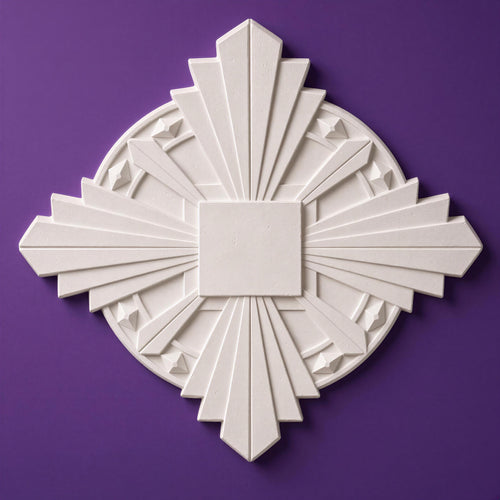
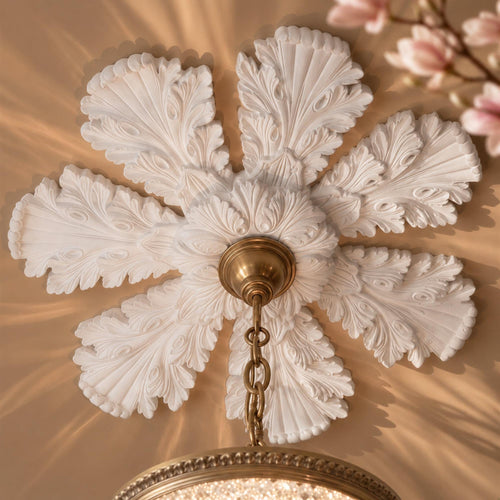
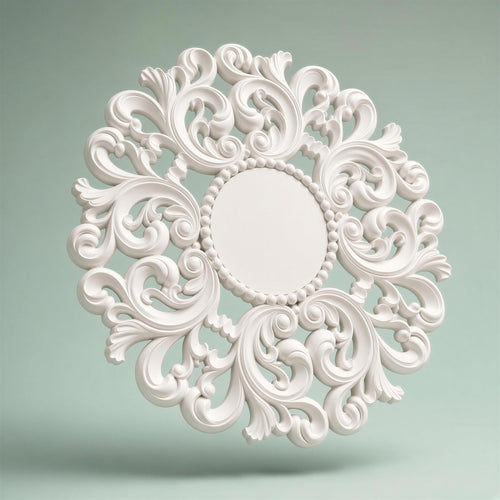
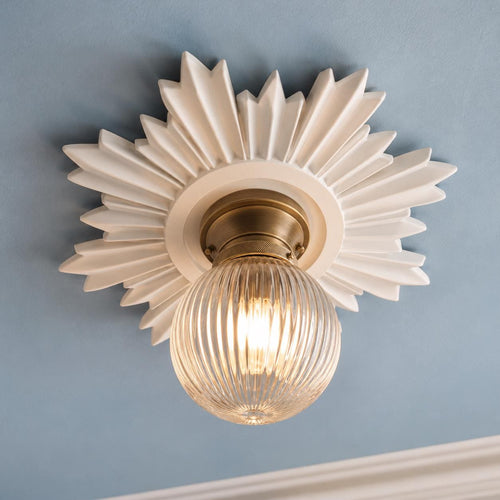
Turn the desk first, then fit a blind, then add a lamp. If the room is also a bedroom or snug, read our guide to bedroom wall lights, and for tying colour to light see paint colours for north-, south-, east- and west-facing rooms. If you would like a handmade plaster wall light for the wall behind the screen, see the pieces below.
Keep reading
- How to layer lighting in a living room
- How many lumens and what colour temperature for each room
- Paint colours for north-, south-, east- and west-facing rooms
- Wall light height and spacing
- Plug-in, battery or hardwired wall lights
- Bathroom lighting zones and IP ratings explained
Shop the look


Frequently asked questions
Where should a desk go in relation to a window?
To one side of the screen. HSE advises that the screen should not face windows or bright lights directly, and a window behind you reflects in the glass. Side-on light falls across the desk instead.
How do I stop glare on my monitor?
Move the desk so the window is to the side, close a blind, and move any lamp that reflects in the screen. Hold a small mirror against the screen to see what is reflected. Lower screen brightness to suit the room.
What lux level do I need for a home office?
There is no legal figure for homes. HSE guidance for detailed office work gives 200 lux average with 100 lux minimum, and the University of Warwick designs for about 300 lux for screen-based work and 500 lux for paper. Use these as a guide, not a test.
Do I need a desk lamp if I have a ceiling light?
A task lamp helps when you work on paper, because it lights the page without raising the brightness of the whole room. HSE says local lighting suits tasks needing higher light levels in a small area. Position it opposite your writing hand.
What colour temperature is best for a home office?
The Energy Saving Trust describes 2700–3000 K as warm white and 4000–4500 K as cool white. Many people choose neutral to cool white for daytime work, but it is a matter of taste. Keep the lamps in the room consistent.
Does my employer have to check my home workstation?
HSE says the display screen equipment regulations apply to home workers who use DSE daily for continuous periods of an hour or more. Ask your employer about a workstation assessment. Self-employed people are not covered by the employer duties.
Can I add sockets or wall lights myself?
New wiring, extra sockets and new fixed light supplies are mains work and should be done by a qualified electrician. Plug-in and battery lamps need no wiring. Never plug adaptors into adaptors or exceed 13 amps on an extension lead.
How do I know if a lamp flickers?
Film it with your phone. Banding or flashing on the video suggests flicker. HSE notes that visible flicker can cause discomfort and fatigue, so replace a lamp that tires your eyes.
Sources
References and further reading
Harvard style. Web pages were checked on the access date shown.
- Health and Safety Executive (n.d.) Working safely with display screen equipment, HSE. Available at: www.hse.gov.uk/msd/dse/ (Accessed: 27 October 2026).
- UK Government (1992) The Health and Safety (Display Screen Equipment) Regulations 1992, Schedule (SI 1992/2792, as made), legislation.gov.uk. Available at: www.legislation.gov.uk/uksi/1992/2792/schedule/made (Accessed: 27 October 2026).
- Health and Safety Executive (2013) Working with display screen equipment (DSE): a brief guide (INDG36, rev. 4), HSE. Available at: www.hse.gov.uk/pubns/indg36.pdf (Accessed: 27 October 2026).
- Health and Safety Executive (2003) Work with display screen equipment: guidance on the Health and Safety (Display Screen Equipment) Regulations 1992 as amended (L26), HSE Books. Available at: www.hse.gov.uk/pubns/books/l26.htm (Accessed: 27 October 2026).
- Health and Safety Executive (1997) Lighting at work (HSG38; web version 2010), HSE Books. Available at: www.hse.gov.uk/pubns/priced/hsg38.pdf (Accessed: 27 October 2026).
- University of Warwick (n.d.) Office lighting guidance, University of Warwick, Health, Safety and Wellbeing. Available at: warwick.ac.uk/services/healthsafetywellbeing/guidance/off... (Accessed: 27 October 2026).
- Smith, J. (2023) New lighting guide updated to embrace era of hybrid working (27 January 2023), Workplace Insight. Available at: workplaceinsight.net/new-lighting-guide-updated-to-embrac... (Accessed: 27 October 2026).
- Energy Saving Trust (2025) Energy saving light bulbs and lighting (updated 28 August 2025), Energy Saving Trust. Available at: energysavingtrust.org.uk/advice/lighting/ (Accessed: 27 October 2026).
- Unattributed leaflet hosted by RoSPA (2013) Fire Safety Fund 2013-14: do not overload sockets and extension leads, rospa.com. Available at: www.rospa.com/rospaweb/docs/advice-services/home-safety/u... (Accessed: 27 October 2026).
- Moorfields Private, written with Voyatzis, G. (n.d.) 10 steps for digital eye strain relief, Moorfields Eye Hospital NHS Foundation Trust. Available at: moorfields.nhs.uk/private/about-moorfields-private/blog-a... (Accessed: 27 October 2026).
How to cite this article
Tire, G. (2026) ‘Home Office Lighting: Beat Screen Glare, Choose a Task Light and Plan the Layout’, The Flare Journal. Flare Studio UK. Available at: https://flarestudio.uk/blogs/journal/home-office-lighting-screen-glare-task-lights-and-layout (Accessed: 12 November 2026).
Shop the style


Conversation
Join the conversation
Questions about the history, a room you are planning, or a piece you have seen in the wild? Leave a comment and Joseph will reply.